
How to Add Regional Pricing to Your Elementor Site
Losing international Elementor sales? Here's how to add Purchasing Power Parity (PPP) discounts and show location-based pricing to visitors in 5 minutes.
What is Purchasing Power Parity (PPP)?
PPP is an economic measure of what currencies can actually buy in their local economies. A $99 product may be affordable in the US but represent 15% of a monthly salary in India or Brazil. Elementor PPP pricing adjusts the price international visitors see so your pricing reflects real local purchasing power, not just exchange rates.
For the general guide that works on any website, see Country-Based Pricing: The Ultimate Guide. For the broader WordPress guide, see How to Add Regional Pricing to Your WordPress Site.
Why International Visitors Are Not Buying
A $99 product is affordable in the US but represents 10-25% of a monthly salary in countries like India, Indonesia, or Brazil. You are not losing those visitors because your offer is weak. You are losing them because your price is denominated in US purchasing power, not theirs.
Elementor makes it easy to build a professional-looking sales page. What it does not do is adapt your price to match what each visitor's currency can actually buy. That gap is what purchasing power parity (PPP) pricing solves, and you can add it to any Elementor site in minutes.
The Elementor Advantage: WordPress + WooCommerce
Because Elementor runs on WordPress, you get two things that platforms like Shopify or Gumroad do not offer:
- The Evendeals WordPress plugin — one-click install, no code needed. The plugin installs site-wide automatically. See the WordPress plugin page for details.
- WooCommerce auto-sync — if your Elementor site uses WooCommerce, Evendeals can auto-create and sync coupon codes directly in WooCommerce. No manual coupon management.
If you use Stripe, Lemon Squeezy, or another supported payment provider, Evendeals can auto-sync coupons with those too.
How to Set It Up (Under 5 Minutes)
What you need:
- A WordPress site built with Elementor (free or Pro)
- A free account at Evendeals.com
- 5 minutes
Step 1: Install Evendeals
Method A: WordPress plugin (recommended)
- In your WordPress admin, go to Plugins > Add New
- Search for Evendeals and install the free plugin
- Activate it and connect your Evendeals account
- Done. The script is installed site-wide automatically.
Method B: Elementor Custom HTML widget
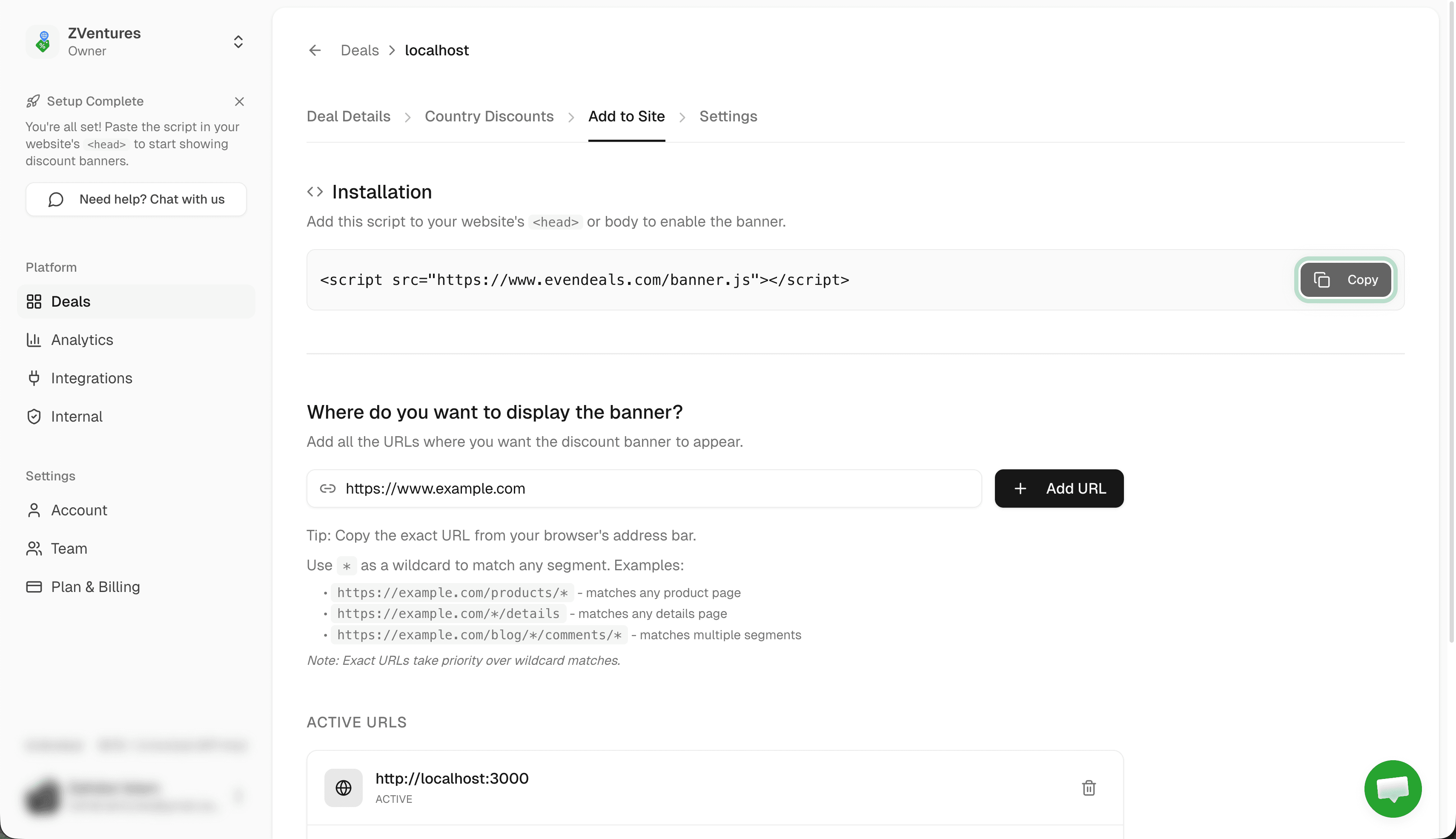
- Sign up at evendeals.com and copy your script from the Add to Site tab
- In Elementor, open your page editor
- Search for the HTML widget and drag it into a section (any section, it renders invisible)
- Paste the Evendeals script into the HTML field and save
- Repeat for each page where you want the banner to appear, or use Elementor Pro's Theme Builder to add it to a global footer template
Step 2: Set Up Coupon Codes
Option A: Auto-sync (recommended) — connect your payment provider in Evendeals and coupon codes are created and managed automatically:
- WooCommerce — auto-creates and syncs coupons directly in WooCommerce
- Stripe — auto-creates promotion codes via Stripe Connect
- Lemon Squeezy — auto-syncs discount codes via API key
Option B: Manual setup — create coupon codes in your payment provider (WooCommerce Coupons, Stripe, etc.) and enter the matching codes in Evendeals. Works with any checkout that supports coupon codes.
- Create percentage discount coupons at different tiers. Example:
PPP20(20%),PPP40(40%),PPP60(60%) - Use the Regional Pricing Calculator to decide the right percentage per country
Step 3: Configure Country Discounts in Evendeals
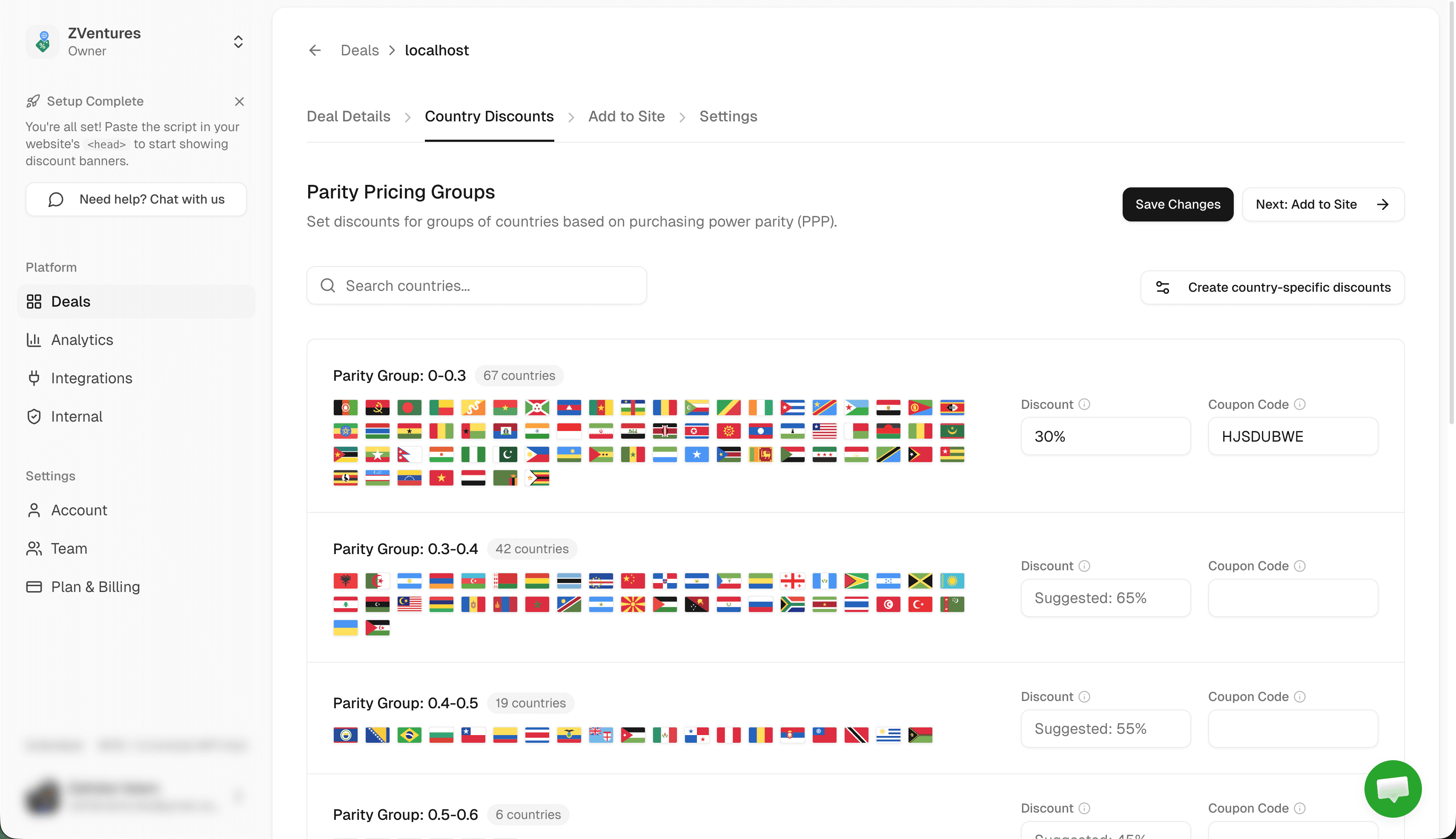
- Go to Country Discounts in your Evendeals dashboard
- For each country group, set the discount percentage and the matching coupon code
- Click Save Changes
Step 4: Customize Your Banner
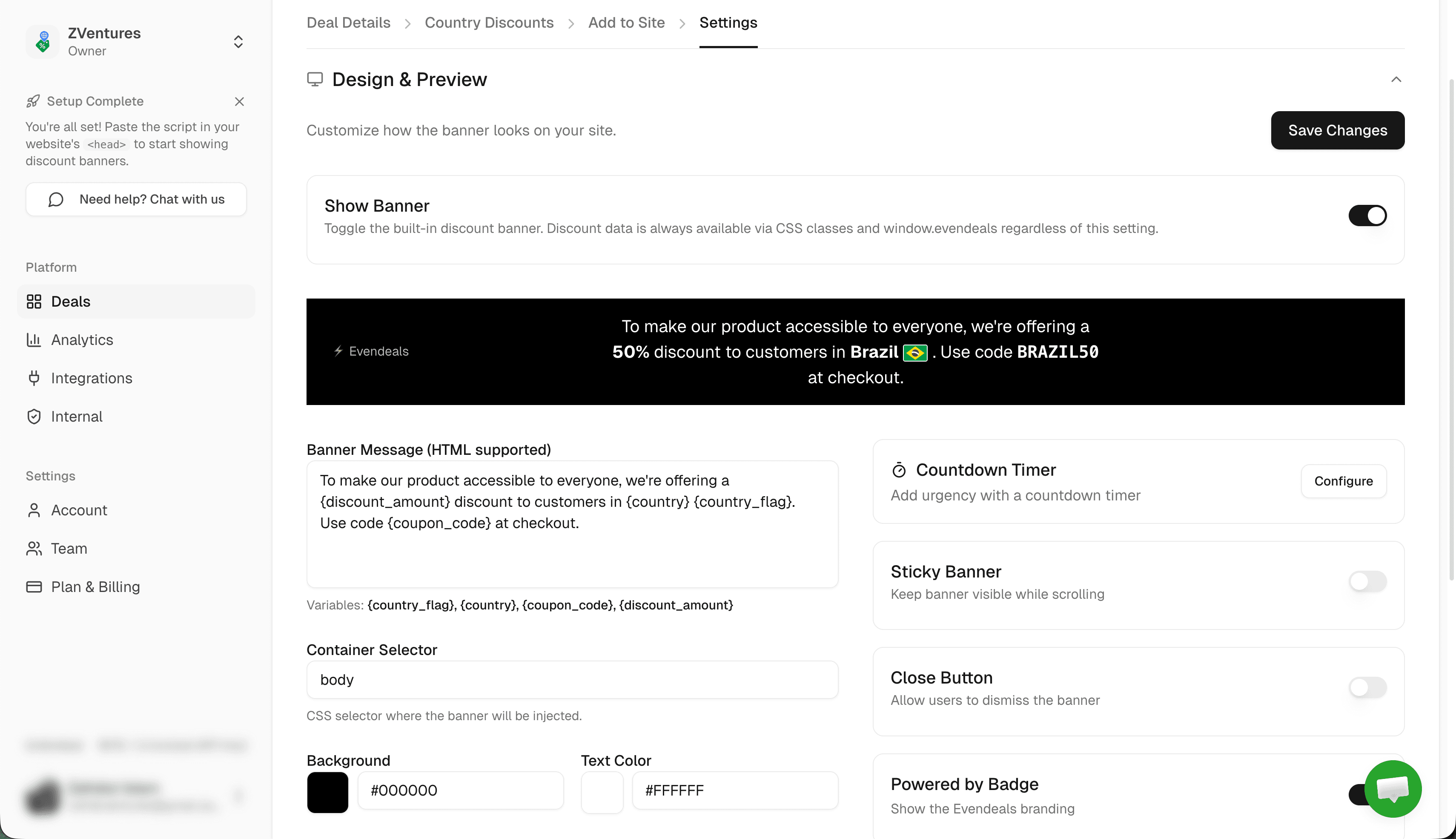
- Go to the Add to Site tab in Evendeals
- Customize banner colors to match your Elementor design, edit the message, set position (top or bottom)
- Preview the banner for different countries
How It Works
When someone from India visits your Elementor page:
- They see a banner: "Special pricing for visitors in India: Get 40% off with code PPP40"
- They click the code to copy it
- They proceed to checkout and paste the code
- They pay the localized price
Visitors from the US see your regular price. No banner, no discount.
Elementor Pro: Adding the Script Site-Wide
If you use Elementor Pro, you can add the script once and have it appear everywhere using Theme Builder:
- Go to Elementor > Theme Builder
- Create or edit a Footer template
- Drag an HTML widget into the footer
- Paste the Evendeals script and save
- Set the template to display on all pages
This is the cleanest approach for Elementor Pro users who are not using the WordPress plugin.
Beyond the Banner: Display Modes
- Banner (default) — Floating bar with click-to-copy coupon code. Customize colors, text, and position from the Evendeals dashboard.
- Custom Display — Use CSS classes to show the discount amount inside your Elementor design. Great for inline pricing sections.
- API Mode — Call the Evendeals API for full control. Useful for custom Elementor dynamic content.
VPN Protection
Evendeals (paid plans) automatically detects and blocks VPN, proxy, and Tor connections. Only genuine visitors from each country receive the regional discount. Auto-rotating coupon codes prevent shared codes from spreading.
FAQ
Do I need Elementor Pro?
No. The WordPress plugin or an HTML widget works with free Elementor. Elementor Pro's Theme Builder just makes it easier to deploy site-wide without the plugin.
Will this work with WooCommerce on my Elementor site?
Yes, and WooCommerce users get the best experience: Evendeals auto-creates and syncs WooCommerce coupon codes, so you never have to create them manually. See the WooCommerce integration for details.
Will it slow down my Elementor site?
No. The Evendeals script is 5KB and loads asynchronously. It will not affect your Elementor page speed scores.
Can I show the banner only on specific Elementor pages?
Yes. In Evendeals, configure which URLs trigger the banner. Even if the script loads site-wide, the banner only appears on the pages you specify.
Do I need to know code?
No. The WordPress plugin is one-click. If you prefer the HTML widget method, it is copy-paste with no coding required.
Next Steps
Also see: Divi, WordPress, WooCommerce, Webflow, Squarespace, Shopify.
- Install the Evendeals WordPress plugin (or use the HTML widget)
- Connect your payment provider for auto-coupon sync, or create manual coupon codes
- Configure country discounts in Evendeals
- Customize the banner to match your Elementor design
- Watch your international conversion rates increase
Visitors from India, Brazil, Southeast Asia, and Latin America are already landing on your Elementor pages. Give them pricing that reflects what their currency can actually buy, and they will buy.
Try Evendeals Free