
How to Add Regional Pricing to Your Heartbeat Community
Losing international sales because your community is priced for the US market? Here's how to set up country-based discounts for your Heartbeat offers using Evendeals and Stripe in under 10 minutes.
For the general guide that works on any website, see Country-Based Pricing: The Ultimate Guide. Why this works: Why Your Online Business Needs Parity Pricing.
What You Need
- A Heartbeat community with Stripe connected
- An Evendeals account
- A landing page (e.g., Swipe Pages, Framer, or any page builder)
- ~10 minutes
Step 1: Verify Stripe Is Connected in Heartbeat
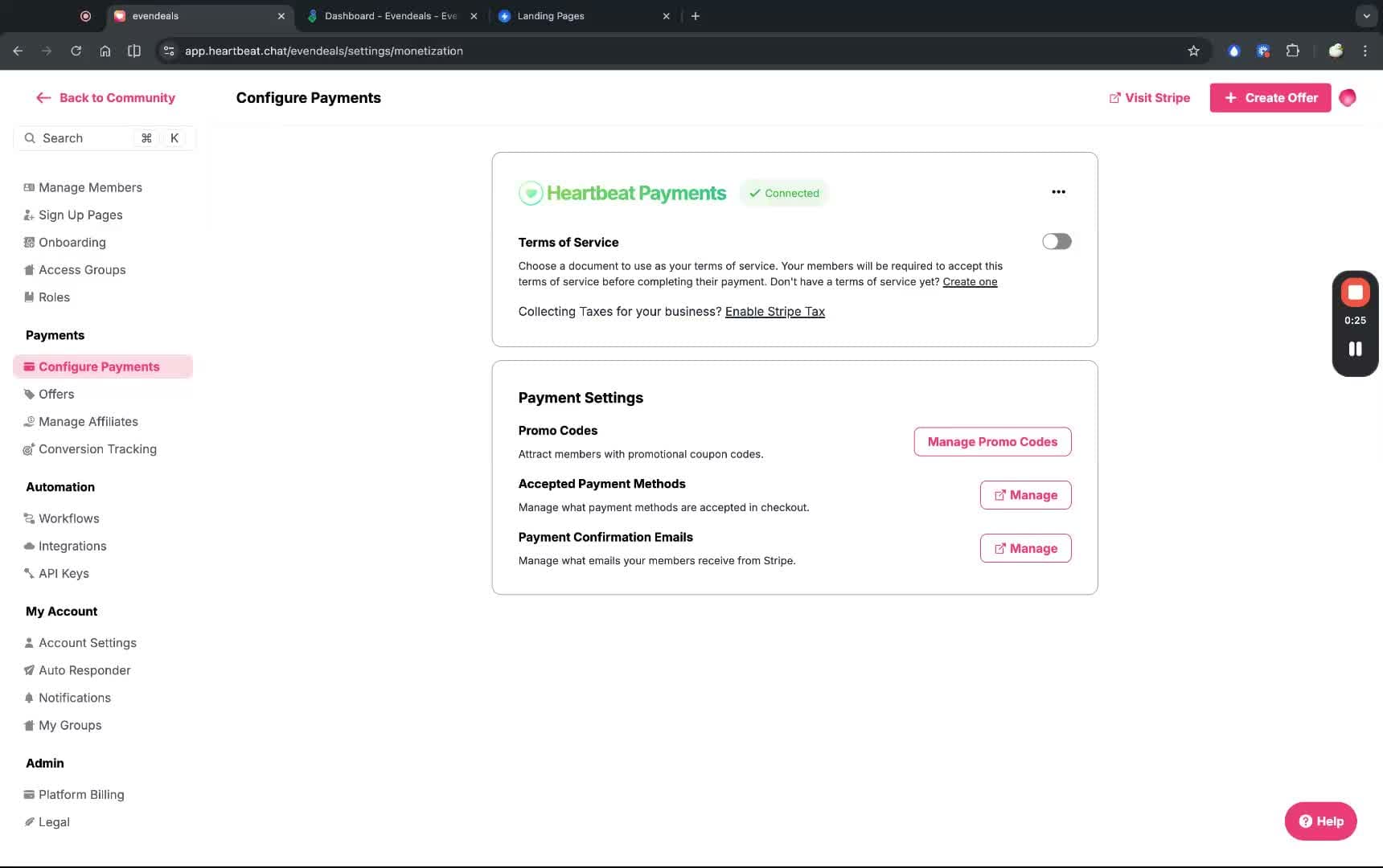
Go to your Heartbeat admin dashboard and navigate to Configure Payments. Make sure your Stripe account shows as Connected.
Step 2: Create a Deal in Evendeals
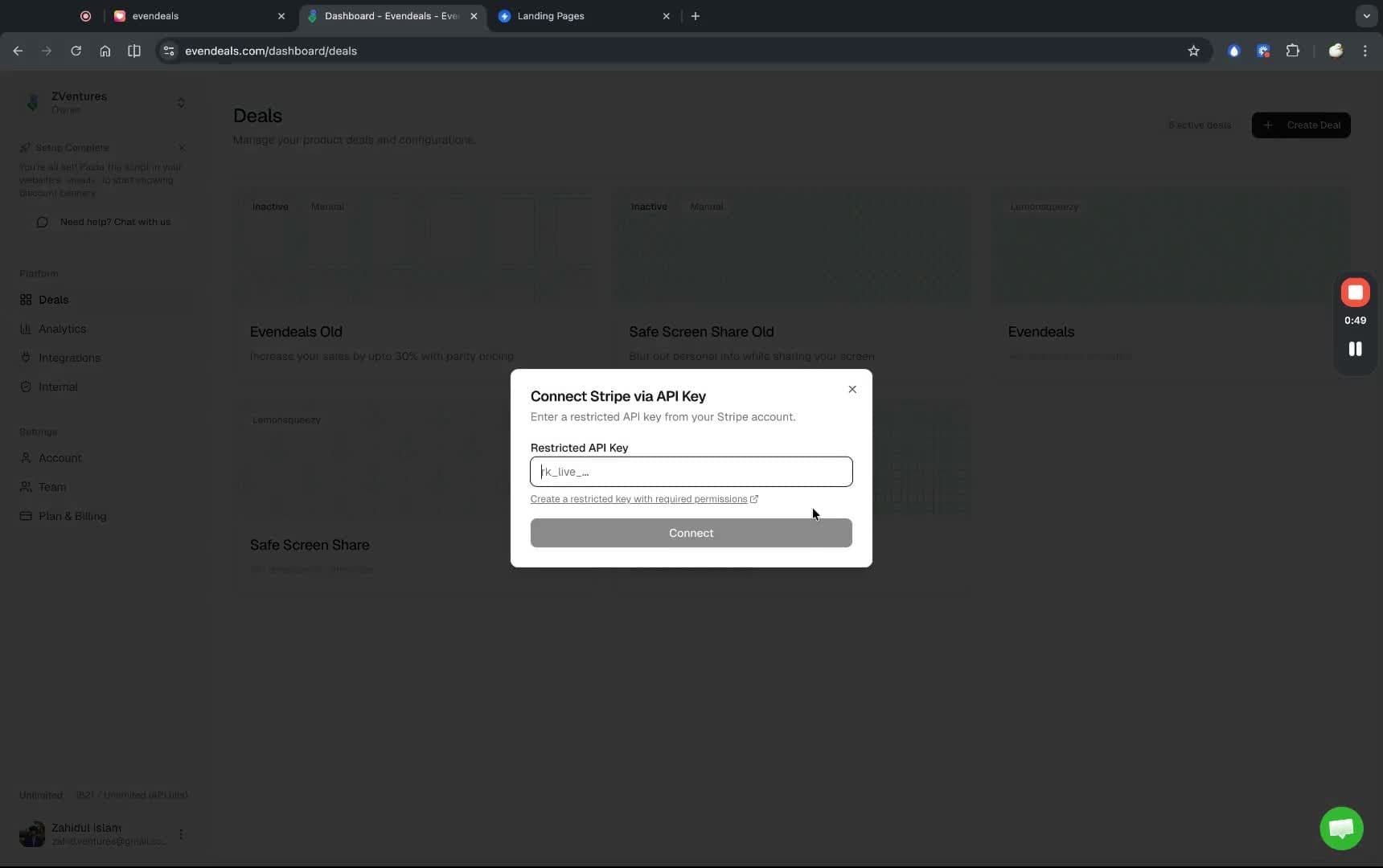
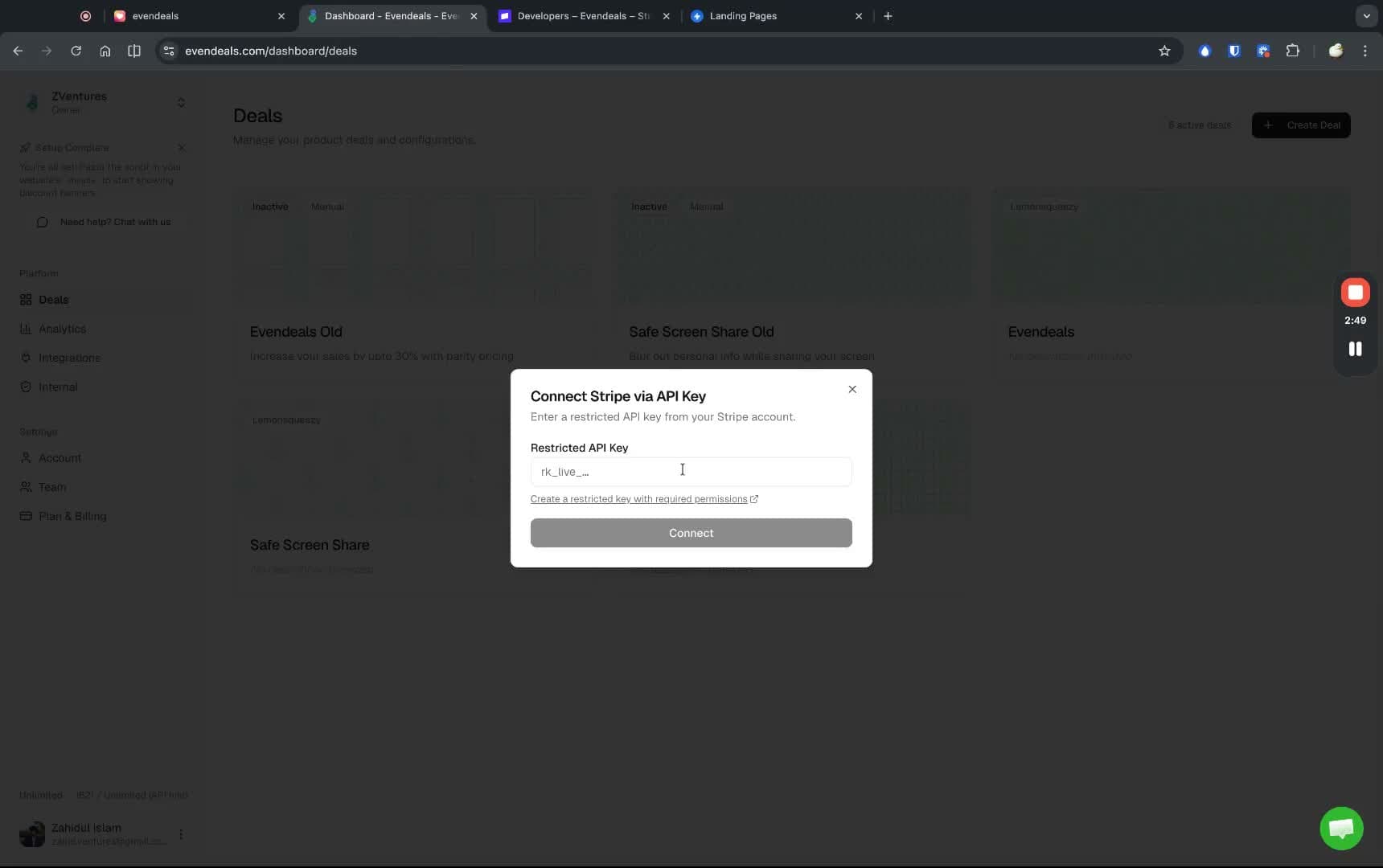
Go to your Evendeals dashboard and click Create Deal. Select Stripe as the provider and choose Restricted API Key.
Step 3: Create a Restricted API Key on Stripe
Click the "Create a restricted key with required permissions" link in the Evendeals dialog. This redirects you to Stripe with the correct permissions pre-configured.
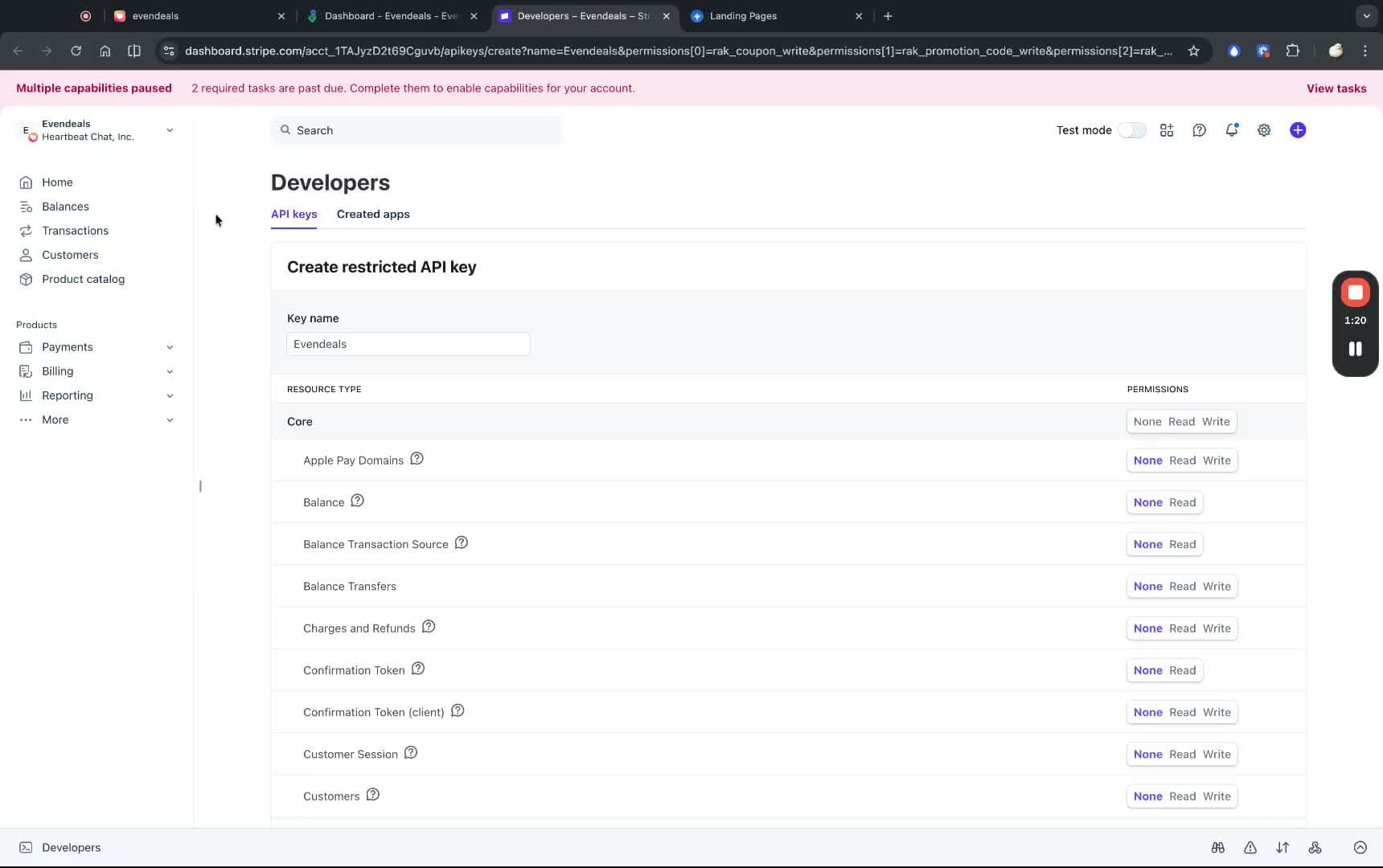
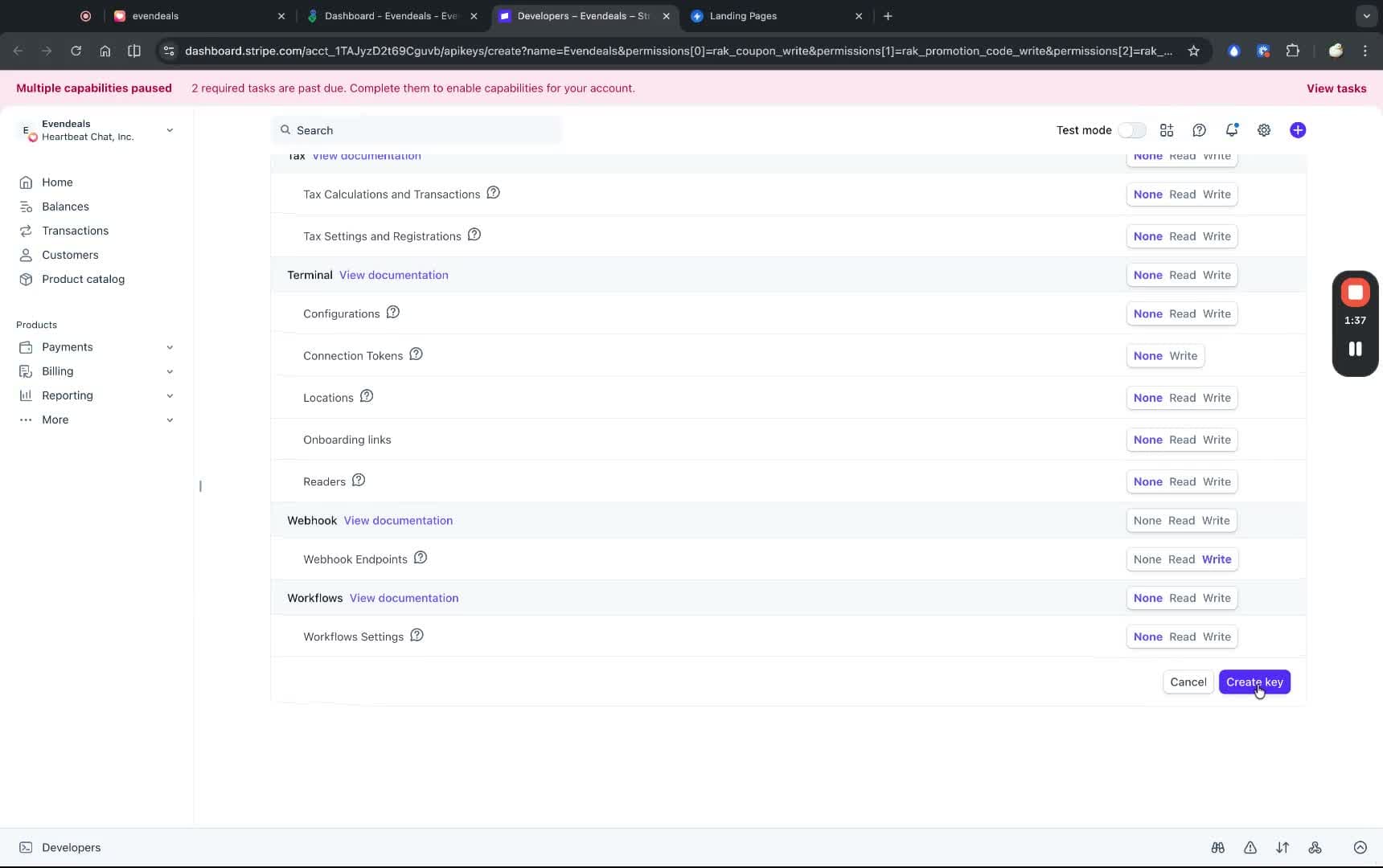
Important:Make sure you're on the correct Stripe business - the same one connected to your Heartbeat account. You don't need to change anything on this page. Just scroll down and click Create key.
Step 4: Paste the Key in Evendeals
After creating the key, click to copy it. Go back to Evendeals and paste the restricted API key in the input field. Click Connect.
Step 5: Configure Country Discounts
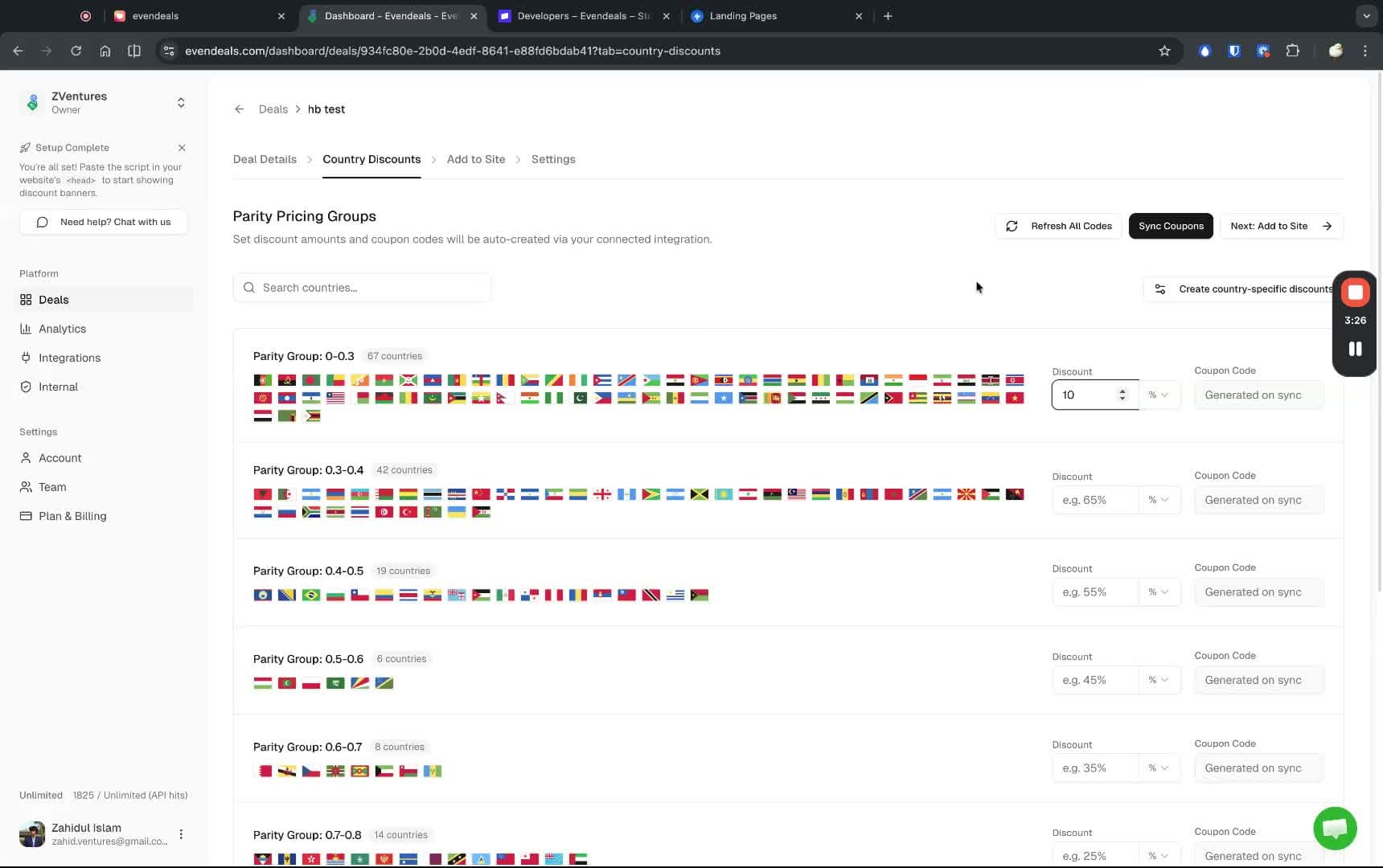
Give your deal a name (e.g., your product name), then configure discount percentages for each parity group. Countries are automatically grouped by purchasing power. For example, set 10% for the lowest purchasing power group.
Step 6: Sync Coupons to Stripe
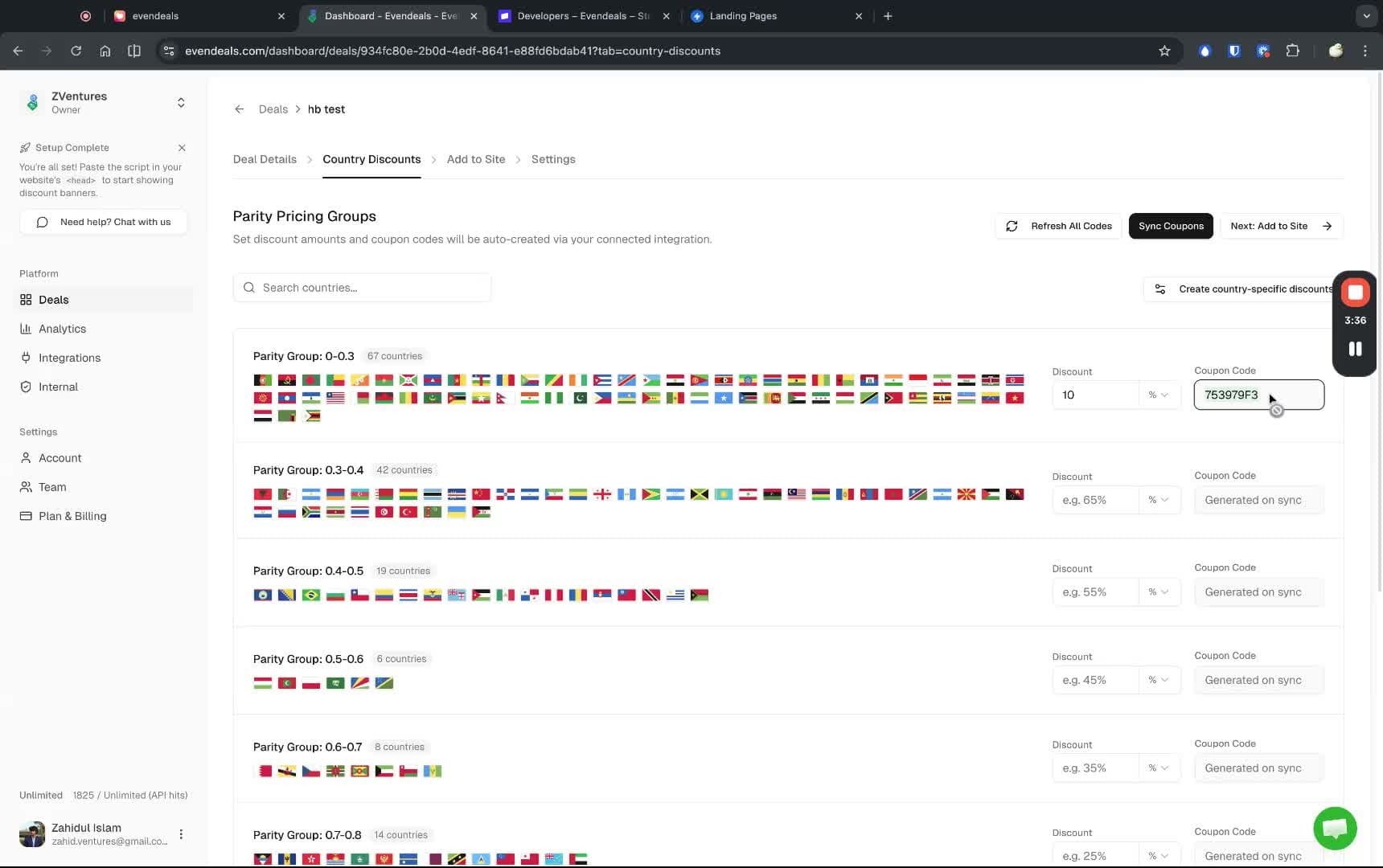
Click Sync Coupons. Evendeals automatically creates the coupon codes on your Stripe account. You don't need to create them manually.
Step 7: Test the Coupon on Heartbeat Checkout
Go to your Heartbeat offer, copy the share link, and open it. You can enter the generated coupon code at checkout to verify the discount works.
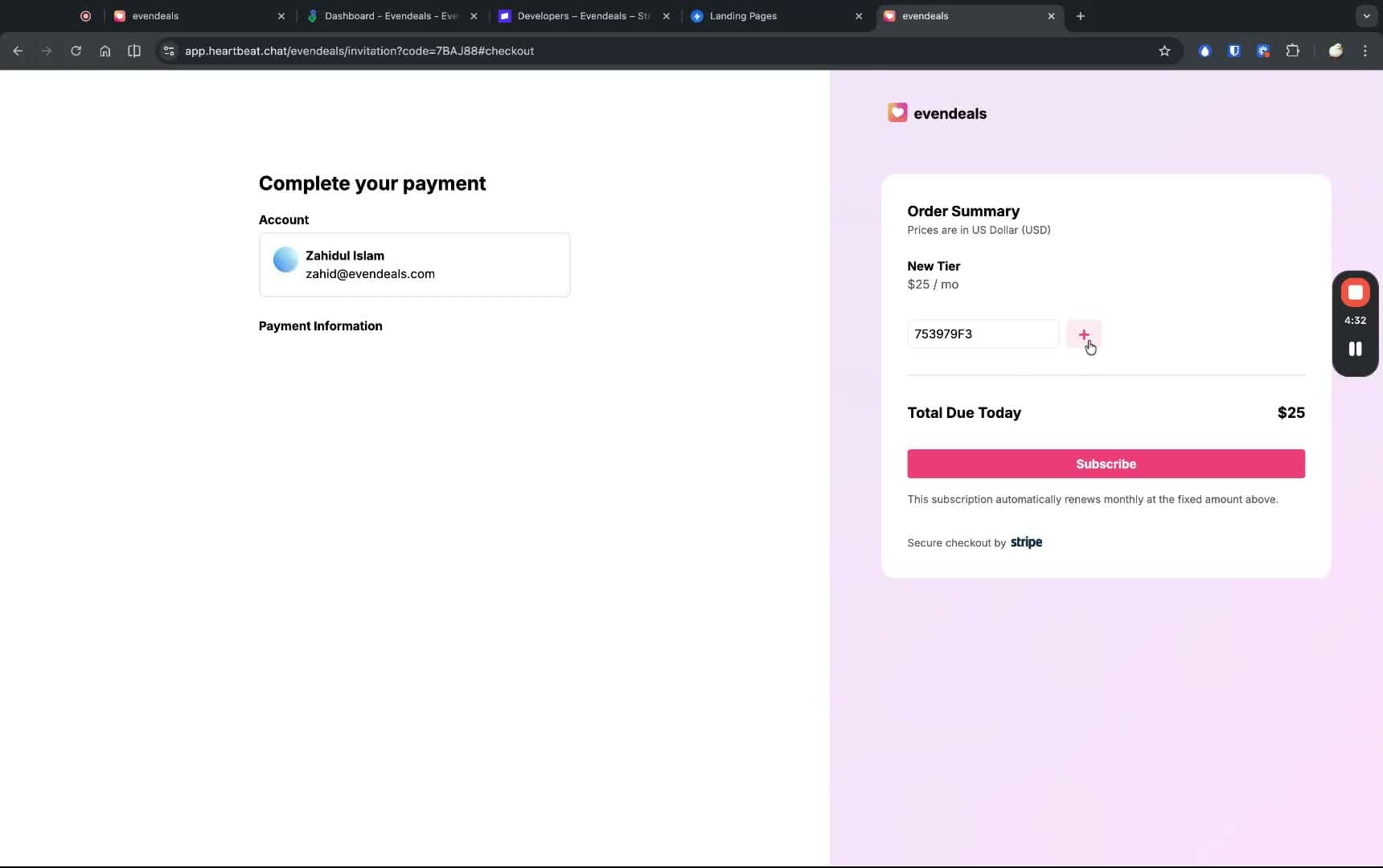
Note:Make sure "Add custom landing page" is turned off for your Heartbeat offer so the default checkout page is used.
Step 8: Set Up a Landing Page (Optional but Recommended)
To let visitors know you support purchasing power parity, create a landing page with a pricing section. You can use any no-code page builder (Swipe Pages, Framer, Webflow, etc.).
Add the Evendeals Script
In Evendeals, go to the Add to Site tab. Copy the installation script.
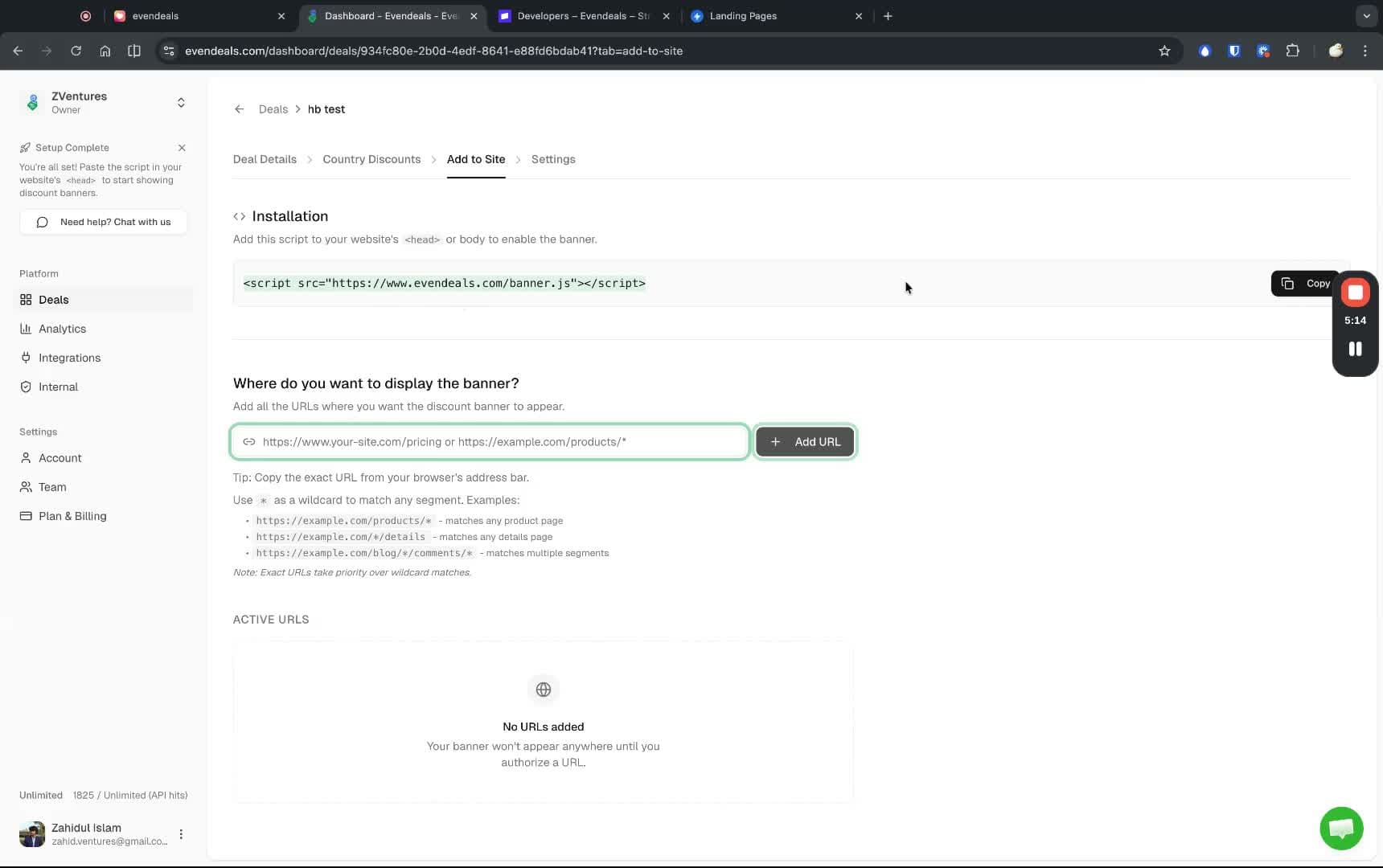
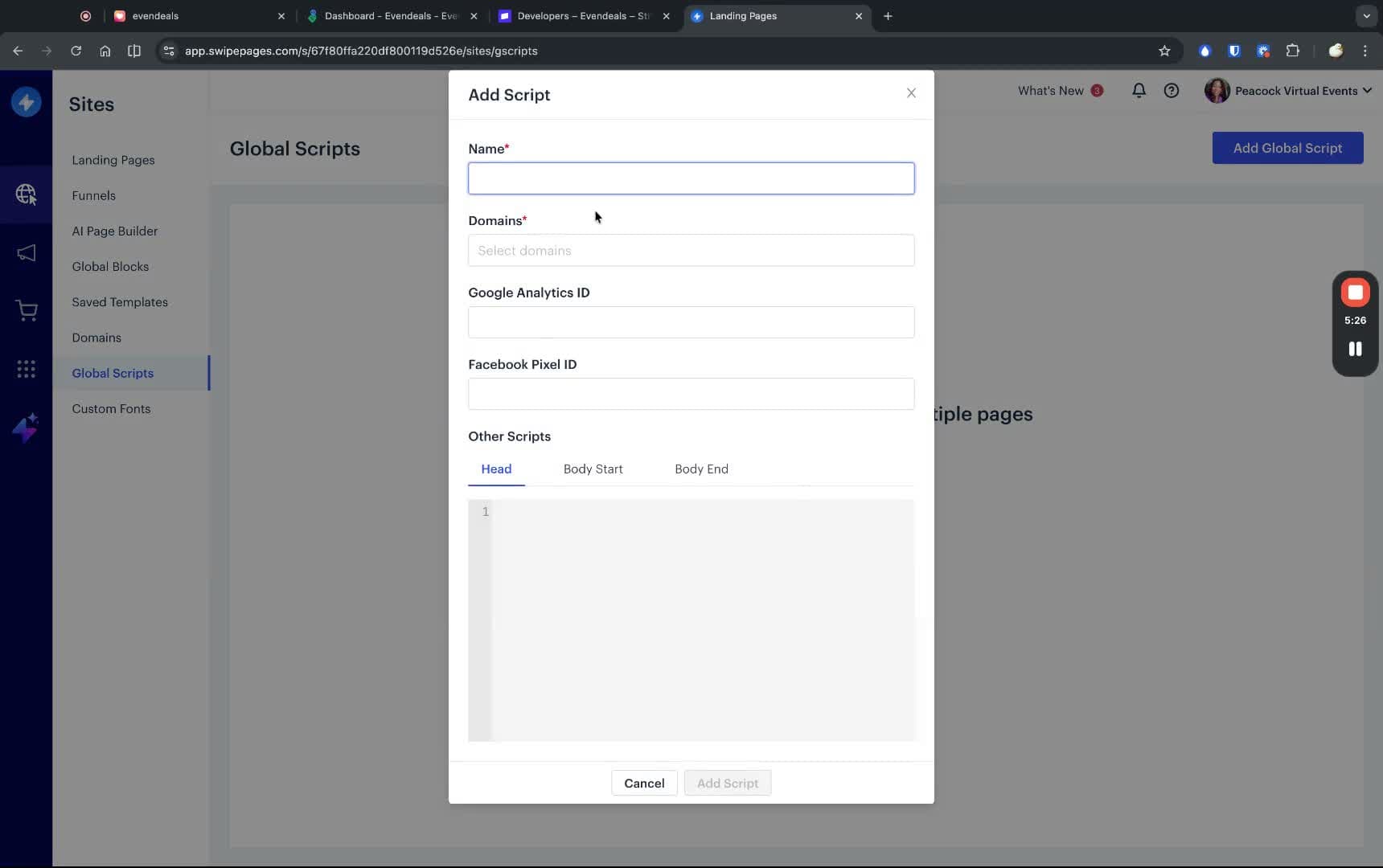
Add this script to your page builder. In Swipe Pages, go to Global Scripts → Add Global Script, paste the script, and publish.
Build a Custom Pricing Display
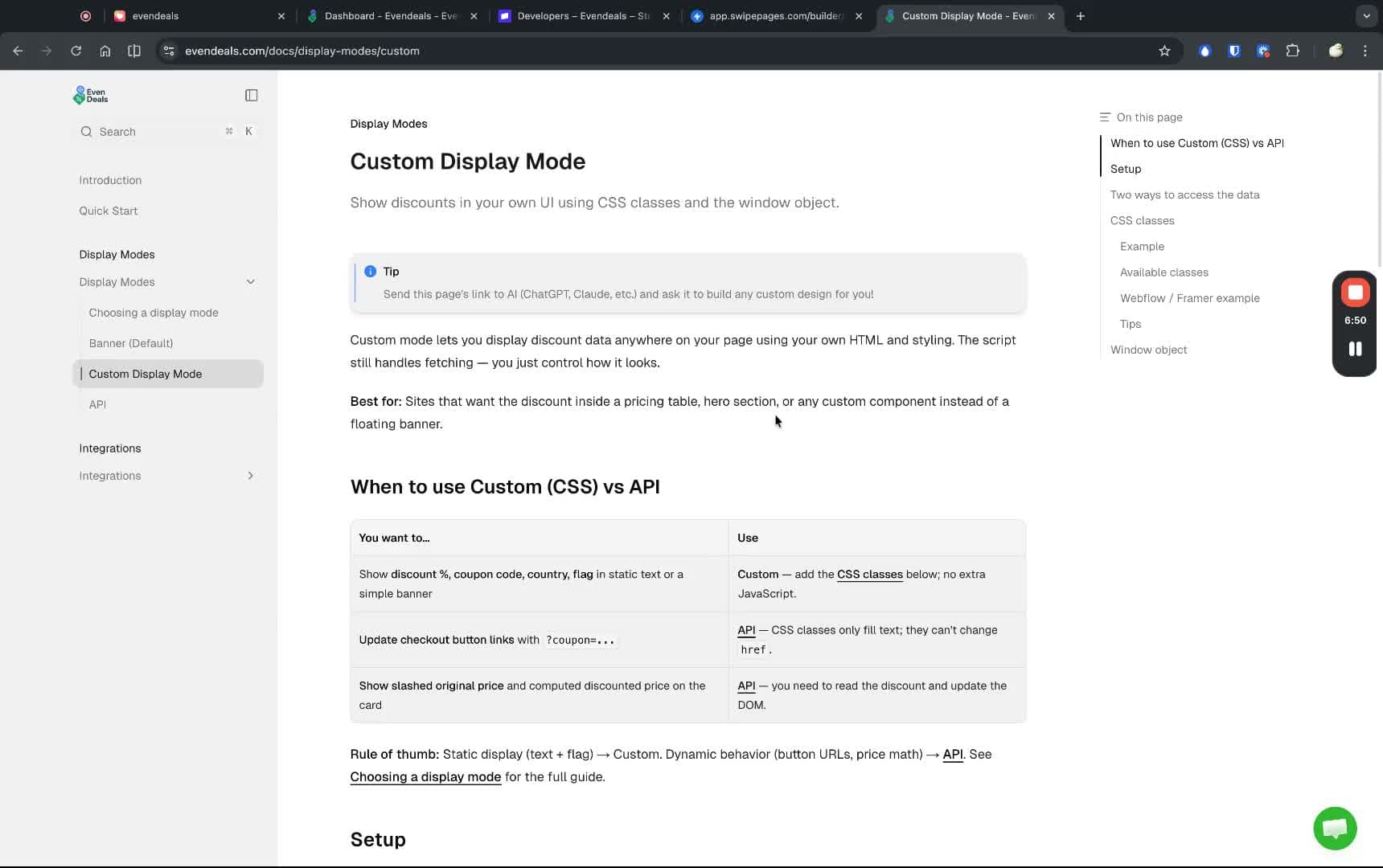
Check the Custom Display Mode docs to build a pricing section that shows adjusted prices. You can send the docs link to ChatGPT/Claude and ask it to generate the HTML for you - no coding required.
Before Adding the URL
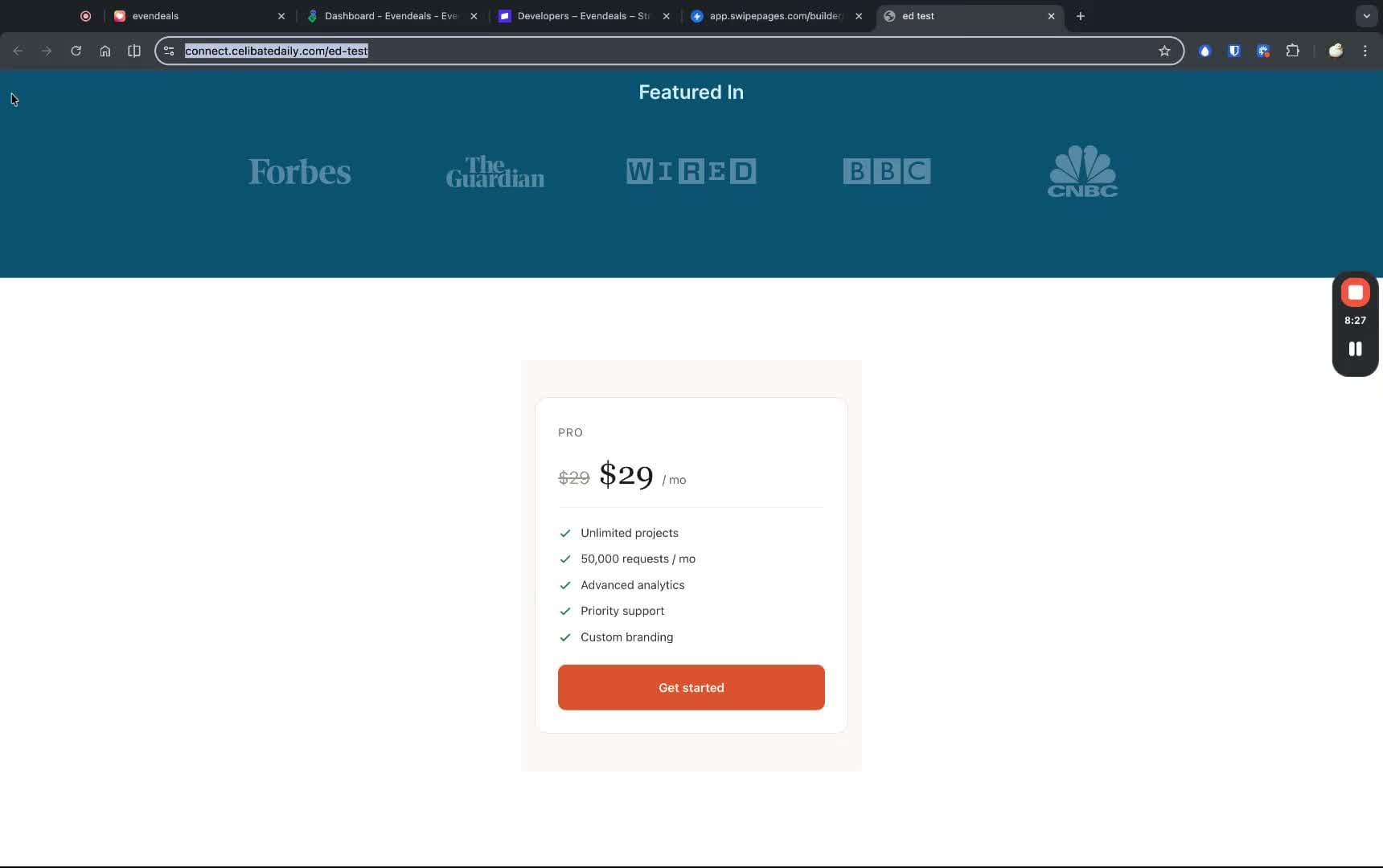
Initially your landing page pricing won't show any discounts:
Step 9: Add Your Landing Page URL to Evendeals
Copy your landing page URL and paste it in the Add to Site tab under "Where do you want to display the banner?". Click Add URL.
After Adding the URL
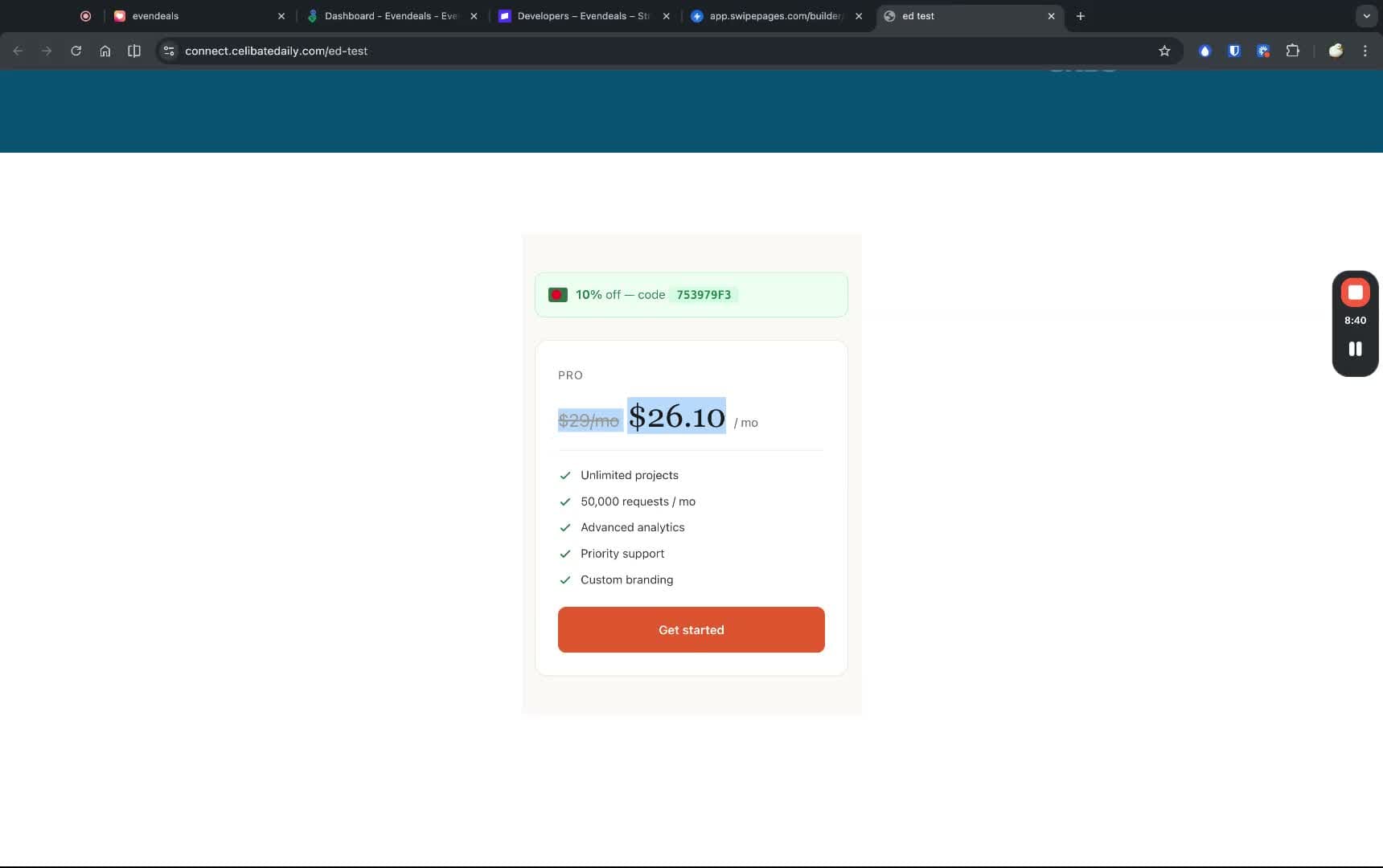
Reload your landing page. The pricing section now shows the discounted price with the country flag and coupon code:
Step 10: Done!
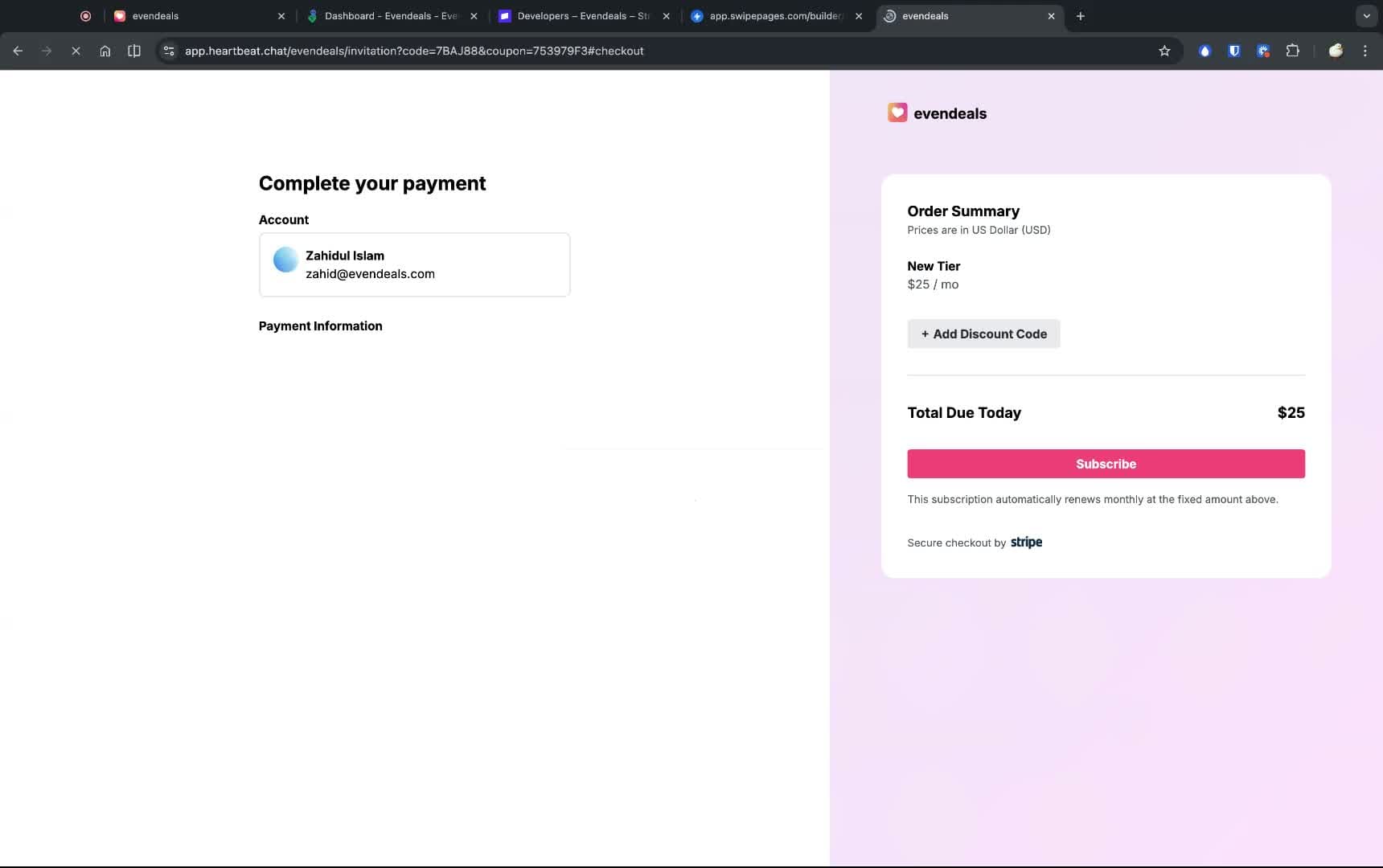
Visitors from different countries now see adjusted pricing. When they click "Get Started", they're redirected to your Heartbeat checkout where the coupon is automatically applied.
How It Works
- Visitor lands on your pricing page
- Evendeals detects their country and shows the adjusted price + coupon code
- Visitor clicks the CTA button which links to your Heartbeat checkout
- They apply the coupon code and pay the discounted price
US visitors (or visitors from high-PPP countries) see your regular price with no discount.
VPN Protection
Worried about people faking their location? Evendeals (paid plans) automatically detects and blocks VPN users, so only people who actually live in eligible countries get the discounts.
What You Can Customize
- Which countries see discounts
- How much discount each country group gets
- Banner/display colors and text
- Whether to use the default banner or custom display mode
- Which pages show the discounts
FAQ
Do I need to create coupons manually on Stripe?
No. Evendeals auto-creates and syncs coupons to your Stripe account.
Can I use this with any landing page builder?
Yes. As long as you can add a script tag to your page, it works with any builder (Framer, Webflow, Swipe Pages, Carrd, WordPress, etc.).
Do I need to know code?
No. The Stripe key setup is point-and-click, and you can use AI (ChatGPT/Claude) to generate the pricing display HTML from our docs.
What if I have multiple Heartbeat offers?
Create separate deals in Evendeals for each offer, each with its own coupon set.
Next Steps
Also see: Teachable, Thinkific, Podia, Framer, WordPress.
- Connect your Stripe account to Evendeals
- Configure country discounts and sync coupons
- Build a landing page with the custom pricing display
- Watch your international conversion rates increase
Ready to unlock international markets for your Heartbeat community?
Try Evendeals Free