
How to Add Regional Pricing to Your Circle Community
Losing international members because your community is priced for the US market? Here's how to show location-based discounts for your Circle community in under 10 minutes.
For the general guide that works on any website, see Country-Based Pricing: The Ultimate Guide. Why this works: Why Your Online Business Needs Parity Pricing.
What You Need
- A Circle community (admin access) with paywalls enabled
- A free account at Evendeals.com
- A landing page (any page builder — Framer, Webflow, Carrd, or your own website)
- 10 minutes
Step 1: Get Your Landing Page or Circle URL
Circle doesn't allow custom code injection directly, so you'll need a landing page for your community. This can be any page builder — Framer, Webflow, Carrd — or your own website. If you already have one, great. Copy the URL.
Step 2: Set Up Evendeals
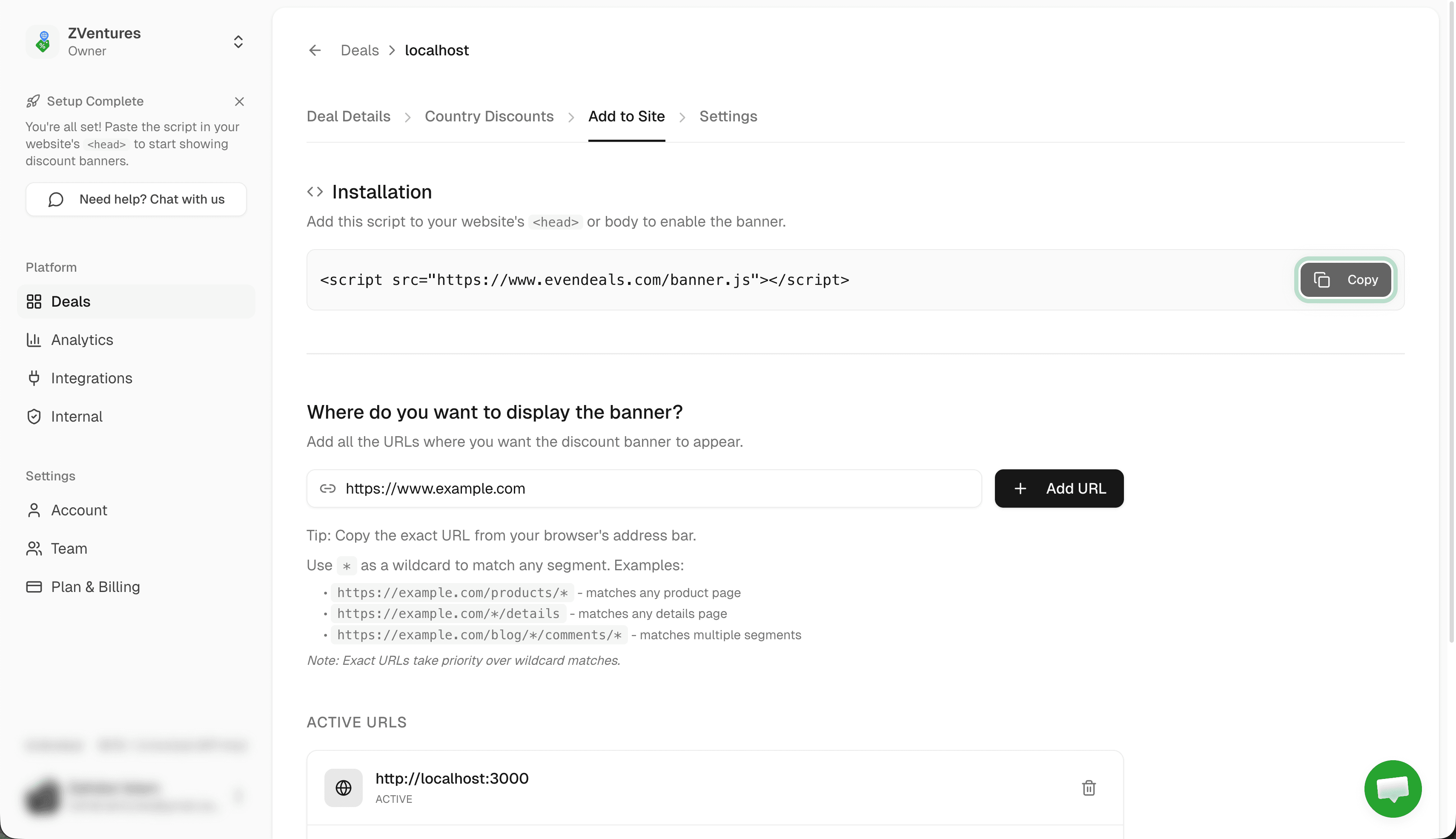
Sign up at Evendeals, create a new deal, and paste your landing page URL. Click Add URL.
Step 3: Create Coupons in Circle
You have two options for creating the coupon codes that Evendeals will show to visitors:
Option A: Payment provider integration
If you use Stripe alongside Circle, you can connect Stripe to Evendeals for auto-coupon sync. Evendeals will create coupon codes on Stripe automatically. However, verify that these Stripe-created coupons work at Circle's checkout — Circle may not accept all Stripe coupons depending on your paywall setup.
Option B: Manual setup (recommended)
Create coupons directly in Circle for guaranteed compatibility:
- Go to your Circle admin → Settings → Paywalls
- Create coupon codes for different discount tiers
- Set percentage discounts (e.g., 15%, 30%, 50%)
- Circle supports both percentage and fixed-amount coupons
Once created, you'll enter these coupon codes in Evendeals in the next step.
Step 4: Configure Country Discounts in Evendeals
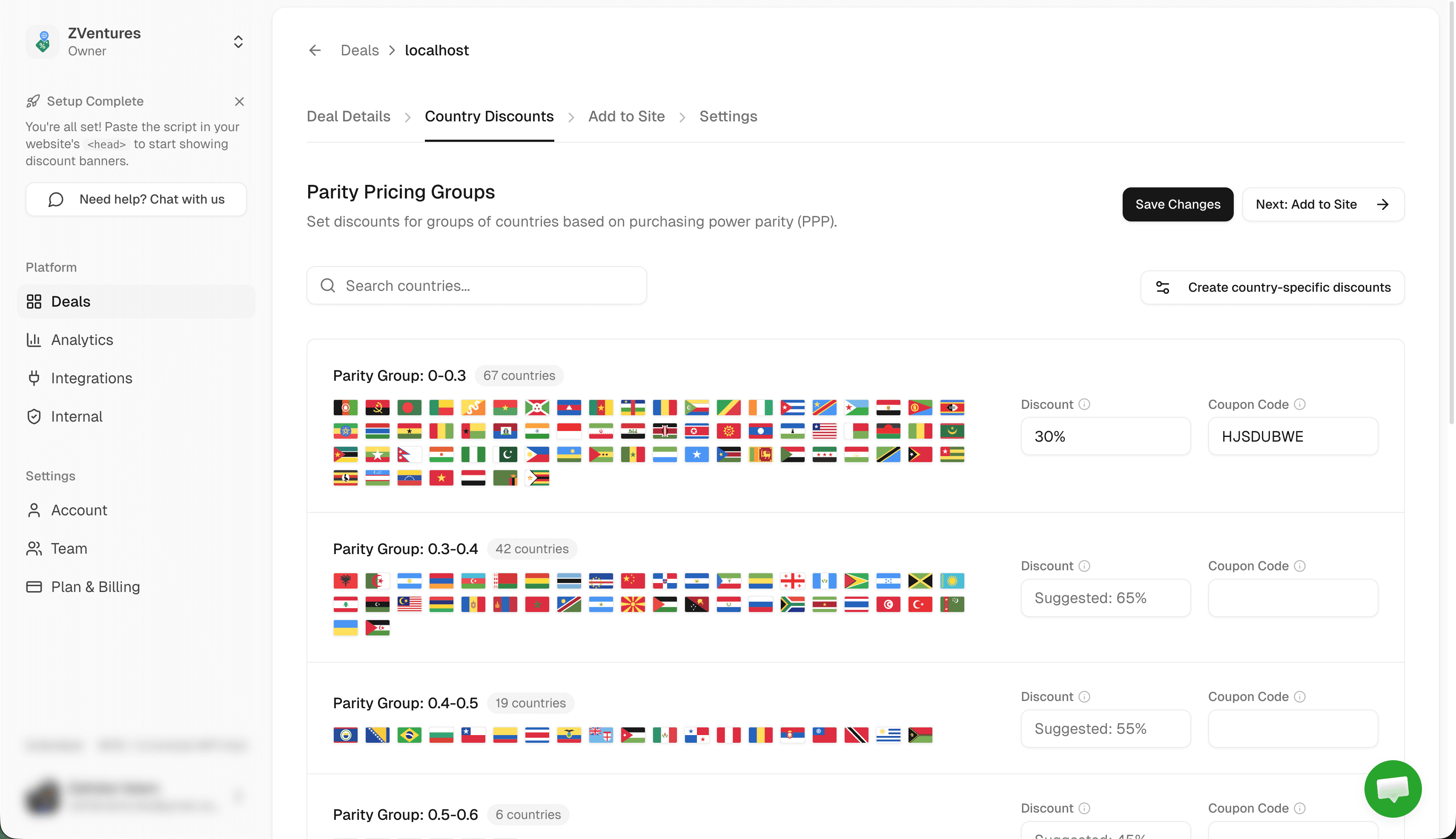
In your Evendeals dashboard, configure discount percentages for each parity group. Countries are automatically grouped by purchasing power. Enter the coupon codes you created in Circle — make sure they match exactly.
Step 5: Customize Banner
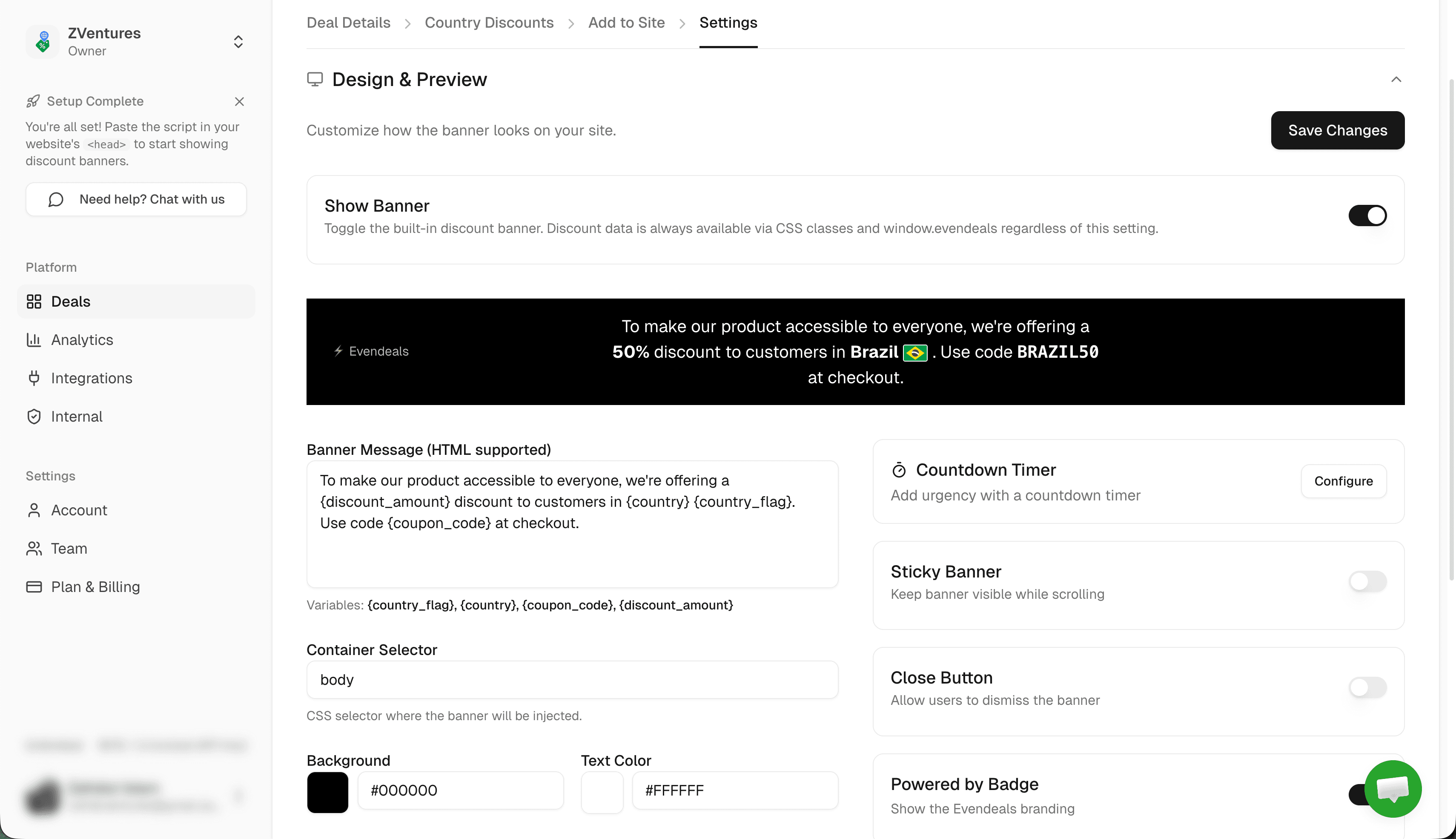
Head to the Design tab to customize the look and feel of the parity pricing banner. Choose colors, text, position, and optionally add a countdown timer.
Step 6: Install Script on Landing Page
Add the Evendeals script to your landing page (not Circle directly — Circle doesn't support custom scripts):
<script src="https://www.evendeals.com/banner.js"></script>In your page builder, go to the global scripts or custom code section, paste the script, and publish.
Link your landing page CTA to the Circle checkout. Circle supports auto-applied coupons via URL — append ?coupon=CODE to your checkout URL so visitors don't need to type the code manually.
How It Works
- Visitor lands on your landing page
- Evendeals detects their country and shows the adjusted price + coupon code
- Visitor clicks the CTA button which links to your Circle checkout
- The coupon is auto-applied (or they enter it manually) and they pay the discounted price
US visitors (or visitors from high-PPP countries) see your regular price with no discount.
Beyond the Banner: Display Modes
The default banner works great, but Evendeals supports three display modes:
- Banner (default) — The floating banner. Customize colors, text, position, and countdown timers from the dashboard. Coupon code is click-to-copy.
- Custom Display — Turn off the banner and use CSS classes (
ed-country,ed-discount-amount,ed-coupon-code,ed-country-flag) to show discount data inside your own pricing section. No JavaScript needed. - API Mode — Call the Evendeals API directly from your frontend or backend for full control. Great for custom checkout flows and server-rendered pricing.
VPN Protection
Worried about people faking their location? Evendeals (paid plans) automatically detects and blocks VPN users, so only people who actually live in eligible countries get the discounts.
Auto-Refresh Coupons (paid plans) automatically rotate coupon codes after a set number of views. If someone shares your code publicly, it expires and a new one is created. Requires a connected payment provider (Stripe, Lemon Squeezy, Dodo Payments, Creem, Polar, WooCommerce, or FastSpring).
What You Can Customize
- Which countries see discounts
- How much discount each country group gets
- Banner/display colors and text
- Whether to use the default banner or custom display mode
- Banner position (top or bottom)
- Click-to-copy coupon codes
- Which pages show the discounts
Pricing
Evendeals has a free tier that covers the basics. Paid plans add VPN protection, auto-refresh coupons, and more.
FAQ
Can I inject the script directly into Circle?
No. Circle doesn't support custom code injection. Use a separate landing page and link to Circle checkout from there.
Should I create coupons in Circle or Stripe?
We recommend creating coupons directly in Circle via Settings → Paywalls. This guarantees they work at Circle's checkout. If you connect Stripe to Evendeals for auto-sync, verify the coupons work at Circle checkout before going live.
Can I use this with any landing page builder?
Yes. As long as you can add a script tag to your page, it works with any builder (Framer, Webflow, Carrd, WordPress, etc.).
Do I need to know code?
No. The entire setup is point-and-click. You can use AI (ChatGPT/Claude) to generate the pricing display HTML from our docs if you want a custom display.
What if I have multiple Circle spaces or courses?
Create separate deals in Evendeals for each paid offering, each with its own coupon set.
How do visitors apply the coupon at Circle checkout?
Append ?coupon=CODE to your Circle checkout URL to auto-apply the discount. Alternatively, visitors can enter the coupon code manually at checkout.
Next Steps
Also see: Heartbeat, Teachable, Thinkific, Podia, Framer, WordPress.
- Create coupons in Circle for your discount tiers
- Set up Evendeals with your landing page URL
- Match coupon codes in country discount settings
- Watch your international conversion rates increase
Ready to unlock international markets for your Circle community?
Try Evendeals Free